If you have already set up your Meta Business Manager for Beginners 2026, the next step is understanding one of the most important tools in digital marketing: Meta Pixel.
If you are completely new to Facebook advertising, we strongly recommend reading Facebook Ads Tutorial for Beginners 2026 first. It explains the complete Facebook Ads ecosystem, campaign structure, ad objectives, audience targeting, and optimization strategies that work together with Meta Pixel.
Imagine spending money on Facebook Ads and sending hundreds of visitors to your website, but having no idea what happens after they arrive.
Did they view a product?
Did they add an item to their cart?
Did they complete a purchase?
Without tracking, you are simply guessing.
This is where Meta Pixel becomes essential.
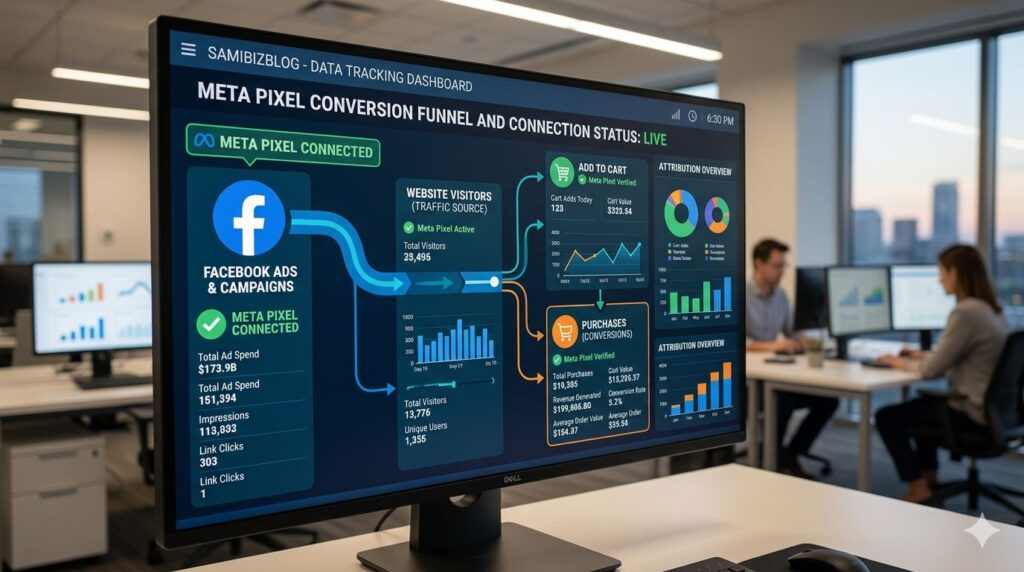
Meta Pixel helps businesses track visitor behavior, measure advertising performance, improve campaign optimization, and generate more sales through data-driven decisions.
Official Meta Pixel Documentation:
https://developers.facebook.com/docs/meta-pixel
- What Is Meta Pixel?
- How Does Meta Pixel Work?
- Why Meta Pixel Is Essential for Business Growth
- How to Create a Meta Pixel
- How to Install Meta Pixel on WordPress
- How to Verify That Meta Pixel Is Working
- Common Meta Pixel Mistakes Beginners Make
- Recommended Resources
- Final Thoughts
- Frequently Asked Questions (FAQs)
What Is Meta Pixel?
Meta Pixel, formerly known as Facebook Pixel, is a small piece of JavaScript code provided by Meta that is installed on your website.
Think of Meta Pixel as a smart tracking system that monitors how visitors interact with your website.
When someone clicks your Facebook or Instagram ad and lands on your website, Meta Pixel records important actions and sends the information back to your Meta Ads Manager account.
This allows advertisers to understand exactly what users are doing after clicking an advertisement.
How Does Meta Pixel Work?
Meta Pixel works silently in the background.
When a visitor lands on your website, the Pixel records actions and sends the data to Meta.
Examples of tracked actions include:
- Viewing a page
- Viewing a product
- Adding a product to cart
- Starting checkout
- Completing a purchase
- Submitting a form
- Registering for a service
This information helps Meta optimize future advertising campaigns.
Types of Meta Pixel Tracking
Standard Events
Standard Events are predefined actions that Meta recognizes automatically.
Common examples include:
- PageView
- ViewContent
- AddToCart
- InitiateCheckout
- Purchase
- Lead
- CompleteRegistration
Official Events Documentation:
https://developers.facebook.com/docs/meta-pixel/reference
Custom Conversions
Custom Conversions allow businesses to track specific actions based on URLs.
For example:
- Thank-you pages
- Newsletter signups
- Booking confirmations
- Contact form submissions
This gives advertisers more flexibility when measuring conversions.
Why Meta Pixel Is Essential for Business Growth
Many businesses run Facebook Ads without proper tracking and struggle to understand campaign performance.
Meta Pixel solves this problem by providing accurate conversion data.
To understand how Facebook’s advertising system uses this data, read Facebook Ads Tutorial for Beginners 2026.
Conversion Tracking
Without Pixel tracking, you only see clicks.
However, clicks do not generate revenue.
Sales generate revenue.
Meta Pixel helps answer important questions such as:
- Which ad generated sales?
- Which audience converted best?
- How much revenue did the campaign generate?
- What is the Return on Ad Spend (ROAS)?
This allows advertisers to make smarter decisions.
Build Custom Audiences
Meta Pixel records website visitors and allows you to create highly targeted audiences.
For example, you can show ads specifically to:
- People who visited your website
- Visitors who viewed products
- Users who abandoned their shopping cart
- Previous customers
This strategy is commonly known as remarketing or retargeting.
Create Lookalike Audiences
One of Meta Pixel’s most powerful features is Lookalike Audiences.
After collecting enough data, Meta analyzes your existing customers and finds similar people across Facebook and Instagram.
This helps businesses reach new audiences that are more likely to convert.
Better Campaign Optimization
Meta’s machine learning system becomes smarter when Pixel data is available.
The more data Meta receives, the better it becomes at identifying potential buyers.
This often results in:
- Lower advertising costs
- Better conversion rates
- Higher return on investment
For best results, Meta Pixel should be combined with a properly configured Meta Business Manager for Beginners 2026 setup.
How to Create a Meta Pixel
Before installing Meta Pixel on your website, you must first create it inside your Meta Business Manager account.
If you have not yet created a Business Manager account, follow Meta Business Manager for Beginners 2026 first.
Step 1: Open Meta Events Manager
https://business.facebook.com/events_manager
Step 2: Connect a Data Source
Click:
Connect Data Sources → Web → Connect
Step 3: Create Your Pixel
Enter:
- Pixel Name
- Website URL
Example:
Samibizblog Main Website Pixel
Click Create.
Step 4: Receive Your Pixel ID
Meta will generate:
- Pixel ID
- Base Tracking Code
You will use this information during installation.
How to Install Meta Pixel on WordPress
WordPress users can install Meta Pixel without touching complicated code.
Method 1: Official Meta Plugin (Recommended)
Log in to your WordPress Dashboard.
Navigate to:
Plugins → Add New
Search for:
Meta Pixel for WordPress
Install and activate the plugin.
Connect:
- Facebook Account
- Business Manager
- Meta Pixel
The plugin automatically installs the tracking code across your website.
Method 2: Manual Installation Using WPCode
Install WPCode:
Then:
- Copy the Pixel Base Code from Events Manager.
- Open WPCode.
- Paste the code into the Header section.
- Save changes.
Your Meta Pixel will now begin tracking visitors.
How to Verify That Meta Pixel Is Working
Never assume your Pixel is working correctly.
Always test your installation before launching advertising campaigns.
Use Meta Pixel Helper
Download the Meta Pixel Helper extension for Google Chrome:
https://chrome.google.com/webstore
After installation:
- Visit your website.
- Click the Meta Pixel Helper icon.
- Check whether PageView events are firing correctly.
If you see a successful PageView event, your Pixel is functioning properly.
Common Meta Pixel Mistakes Beginners Make
Installing Multiple Pixels
Avoid installing multiple Pixels on the same website unless absolutely necessary.
Forgetting Event Tracking
Many advertisers install the base code but never configure conversion events.
Not Testing the Installation
Always verify Pixel functionality before spending money on ads.
Ignoring Purchase Tracking
E-commerce stores should always track:
- AddToCart
- InitiateCheckout
- Purchase
Without these events, sales optimization becomes difficult.
Recommended Resources
To build a complete Facebook advertising system, read these guides next:
- Facebook Ads Tutorial for Beginners 2026
- Meta Business Manager for Beginners 2026
- Facebook Campaign Objectives Explained
- WhatsApp Ads Setup Guide
- Landing Page Optimization Guide
Final Thoughts
Meta Pixel is one of the most important tools available to Facebook advertisers.
Without proper tracking, it becomes almost impossible to understand what is working and what is wasting money.
By installing Meta Pixel correctly, tracking important events, building custom audiences, and creating Lookalike Audiences, businesses can dramatically improve advertising performance and generate more sales.
Whether you operate a blog, affiliate website, online store, or service-based business, Meta Pixel should be one of the first tools you set up before investing heavily in Facebook Ads.
Before launching your first conversion campaign, make sure you read Facebook Ads Tutorial for Beginners 2026 to understand how Meta Ads Manager, campaign objectives, audience targeting, Meta Business Manager, and Meta Pixel work together to create profitable advertising campaigns.
Frequently Asked Questions (FAQs)
Q1. What Is Meta Pixel?
Meta Pixel is a JavaScript tracking code that helps businesses monitor visitor behavior and measure conversions from Facebook and Instagram advertisements.
Q2. Is Meta Pixel Free?
Yes. Meta Pixel is completely free and is available to all Meta advertisers.
Q3. Do I Need Meta Pixel If I Have a Website?
Yes. If you want accurate conversion tracking and better campaign optimization, Meta Pixel is highly recommended.
Q4. Can I Use Meta Pixel Without Meta Business Manager?
While basic setups may work, Meta Business Manager is recommended for proper Pixel management and advanced event tracking.
Q5. What Is the Difference Between Standard Events and Custom Conversions?
Standard Events track predefined actions such as purchases and add-to-cart actions, while Custom Conversions track specific business goals based on custom URLs or rules.
Q6. How Long Does It Take for Meta Pixel to Start Tracking?
In most cases, tracking begins immediately after successful installation.
Q7. What Is Meta Pixel Helper?
Meta Pixel Helper is a free Chrome extension that helps verify whether your Pixel is installed and functioning correctly.
Q8. Can Meta Pixel Track Purchases?
Yes. Meta Pixel can track purchases, revenue, and conversion events when configured correctly.
Q9. Is Meta Pixel Necessary for Retargeting Ads?
Yes. Meta Pixel is required to create website visitor audiences for remarketing and retargeting campaigns.
Q10. Can I Install Meta Pixel on WordPress Without Coding?
Yes. You can install Meta Pixel using the official Meta plugin or tools such as WPCode without writing code.