
Want to build a WordPress website without buying hosting first? Then learning how to install WordPress on XAMPP localhost is one of the best skills for beginners in 2026.
A local WordPress setup lets you create, test, customize, and learn WordPress directly on your laptop without spending money on hosting or a domain. It is perfect for beginners, bloggers, affiliate marketers, developers, students, and anyone who wants to practice WordPress safely.
If you already read our detailed pillar guide on building a WordPress site without hosting at Samibizblog, this article will help you go even deeper by teaching the complete XAMPP installation and WordPress localhost setup process step by step.
By the end of this guide, you will know:
- How to install XAMPP on Windows
- How to create a localhost environment
- How to install WordPress using XAMPP
- How to fix common localhost errors
- How to start learning WordPress safely offline
- How to move your localhost website to live hosting later
- Table of Contents
- What Is XAMPP?
- Why Use XAMPP for WordPress?
- Can I Use XAMPP on My Laptop?
- System Requirements for XAMPP
- How To Install XAMPP
- How To Install WordPress Using XAMPP
- Creating a WordPress Database in phpMyAdmin
- Running WordPress Installation on Localhost
- Understanding the XAMPP Dashboard
- How To Set Up a Local Development Environment Using XAMPP
- Common XAMPP Errors and Fixes
- Localhost vs Live Hosting
- How To Move Your Local Website to Live Hosting
- Best Practices for WordPress Local Development
- Key Takeaways
- FAQs
- Conclusion
Table of Contents
- What Is XAMPP?
- Why Use XAMPP for WordPress?
- Can I Use XAMPP on My Laptop?
- System Requirements for XAMPP
- How To Install XAMPP
- How To Install WordPress Using XAMPP
- Creating a WordPress Database in phpMyAdmin
- Running WordPress Installation on Localhost
- Understanding the XAMPP Dashboard
- Common XAMPP Errors and Fixes
- How To Set Up a Local Development Environment Using XAMPP
- Best Practices for Local WordPress Development
- Localhost vs Live Hosting
- How To Move Your Local Website to Live Hosting
- Key Takeaways
- FAQs
- Conclusion
What Is XAMPP?
XAMPP is a free software package that helps you create a local web server on your computer.
The word XAMPP stands for:
- X = Cross-platform
- A = Apache Server
- M = MariaDB/MySQL
- P = PHP
- P = Perl
It allows you to run websites locally without internet hosting.
In simple words, XAMPP turns your laptop into a mini hosting server so you can install WordPress and test websites offline.
Official website: https://www.apachefriends.org/
Why Use XAMPP for WordPress?
There are many reasons beginners prefer XAMPP for WordPress learning and development.
Benefits of Using XAMPP
- Free to use
- Beginner-friendly
- No hosting required
- Works offline
- Perfect for testing themes and plugins
- Safe environment for experiments
- Faster website loading on localhost
- Great for learning WordPress development
Many affiliate marketers and bloggers first learn WordPress locally before launching live websites.
If your goal is blogging or affiliate marketing, a localhost setup can save money while helping you practice.
Can I Use XAMPP on My Laptop?
Yes, absolutely.
One of the most common beginner questions is:
“Can I use XAMPP on my laptop?”
Yes. XAMPP works on:
- Windows laptops
- MacBooks
- Linux systems
Most beginners install XAMPP on Windows because the setup process is simple.
Even low to medium-spec laptops can run XAMPP smoothly.
System Requirements for XAMPP
Before installing XAMPP, make sure your system meets basic requirements.
| Requirement | Recommended |
|---|---|
| RAM | 4GB or higher |
| Storage | 2GB free space |
| OS | Windows 10/11 |
| Internet | Needed for download only |
| Browser | Chrome, Edge, Firefox |
How To Install XAMPP
Now let’s begin the actual setup process.
Step 1: Download XAMPP
Visit the official XAMPP website:
Download the latest Windows version.
Step 2: Run the Installer
After downloading:
- Open the
.exefile - Click Yes if Windows asks for permission
- Continue with the installation wizard
You may see a warning about antivirus software. Usually, you can continue safely.
Step 3: Select Components
Keep the default selected options:
- Apache
- MySQL
- PHP
- phpMyAdmin
These are necessary for WordPress.
Step 4: Choose Installation Folder
The default folder is usually:
C:\xampp
Avoid changing it if you are a beginner.
Step 5: Complete Installation
Click Next until installation finishes.
After installation:
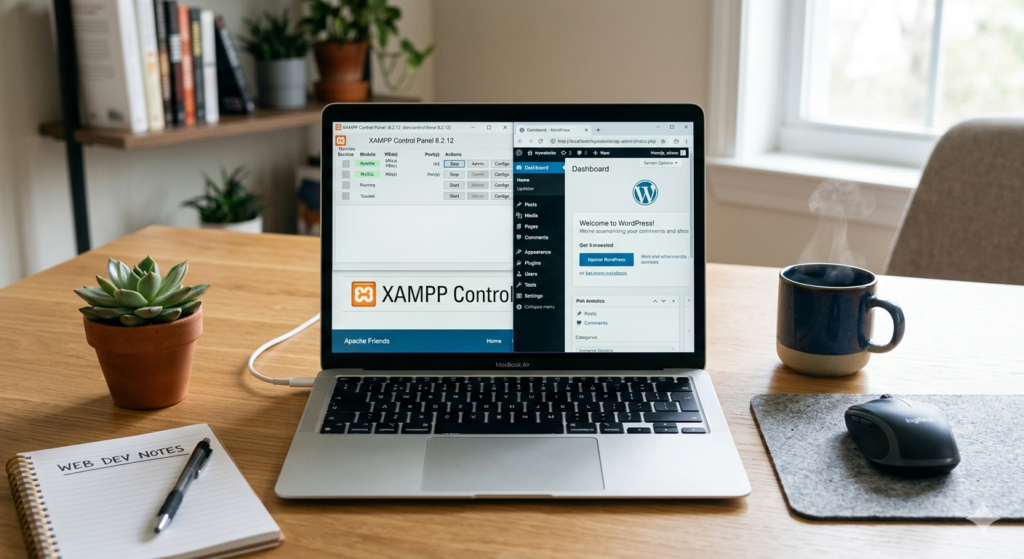
- Open XAMPP Control Panel
- Start:
- Apache
- MySQL
If both turn green, your local server is working correctly.
How To Install WordPress Using XAMPP
Now comes the exciting part.
Step 1: Download WordPress
Go to the official WordPress website:
Download the latest version.
Step 2: Extract WordPress Files
After downloading:
- Extract the ZIP file
- Copy the WordPress folder
Step 3: Move WordPress Folder to htdocs
Go to:
C:\xampp\htdocs
Paste the WordPress folder there.
You can rename it to your project name.
Example:
mywebsite
Creating a WordPress Database in phpMyAdmin
Before installing WordPress, you need a database.
Step 1: Open phpMyAdmin
In your browser type:
http://localhost/phpmyadmin
Step 2: Create Database
- Click New
- Enter database name
Example:
wordpresslocal
- Click Create
That’s it.
Running WordPress Installation on Localhost
Now your WordPress setup is ready.
Step 1: Open Localhost URL
In browser type:
http://localhost/mywebsite
Replace mywebsite with your folder name.
Step 2: Select Language
Choose your preferred language.
Step 3: Database Configuration
Enter:
| Setting | Value |
| Database Name | wordpresslocal |
| Username | root |
| Password | leave blank |
| Database Host | localhost |
Then click Submit.
Step 4: Complete WordPress Setup
Enter:
- Site title
- Username
- Password
Click Install WordPress.
Congratulations! Your localhost WordPress website is now live on your laptop.
Understanding the XAMPP Dashboard
The XAMPP Control Panel is where you manage services.
Main modules include:
| Module | Purpose |
| Apache | Runs website server |
| MySQL | Handles database |
| FileZilla | FTP services |
| Tomcat | Java support |
For WordPress beginners, Apache and MySQL are the most important.
How To Set Up a Local Development Environment Using XAMPP
A proper local development environment helps you safely build and test websites.
Best Setup Tips
Organize Projects Properly
Create separate folders inside:
htdocs
Example:
blog-project
affiliate-site
test-store
Install Themes and Plugins Safely
You can test:
- Themes
- Plugins
- WooCommerce
- Custom code
without affecting a live website.
Learn WordPress Faster
A localhost environment is perfect for:
- Practicing SEO
- Learning Elementor
- Testing affiliate layouts
- Improving website speed
- Trying Rank Math SEO settings
Official Rank Math website:
Common XAMPP Errors and Fixes
Beginners often face small issues during setup.
Here are common problems and solutions.
Apache Won’t Start
Possible Cause
Skype, IIS, or another app is using port 80.
Solution
- Close Skype
- Stop IIS
- Change Apache port in XAMPP config
MySQL Not Starting
Solution
- Run XAMPP as Administrator
- Restart computer
- Check port conflicts
localhost Not Working
Solution
Make sure:
- Apache is running
- Correct URL is entered
- WordPress folder exists inside
htdocs
Localhost vs Live Hosting
Many beginners confuse localhost with real hosting.
Here’s the difference.
| Feature | Localhost | Live Hosting |
| Internet Required | No | Yes |
| Public Access | No | Yes |
| Cost | Free | Paid |
| Best For | Learning & Testing | Real Websites |
| Speed | Very Fast | Depends on Hosting |
For beginners, localhost is usually the safest place to start.
How To Move Your Local Website to Live Hosting
Once your site is ready, you can migrate it to live hosting.
Popular migration plugins include:
- All-in-One WP Migration
- Duplicator
- UpdraftPlus
Official plugin directories:
Best Practices for WordPress Local Development
Keep Regular Backups
Even localhost websites can break during testing.
Use Lightweight Themes
Fast themes improve testing performance.
Popular options:
- Astra
- GeneratePress
- Kadence
Learn SEO While Practicing
Your localhost site is perfect for learning:
- On-page SEO
- Internal linking
- Schema markup
- Rank Math optimization
- Affiliate layouts
You can also connect this learning with our complete guide on building a website without hosting.
Key Takeaways
- XAMPP lets you install WordPress locally for free
- You can safely practice WordPress on your laptop
- Installing WordPress using XAMPP is beginner-friendly
- Localhost websites are ideal for learning and testing
- You can later migrate your site to live hosting
- XAMPP helps bloggers, affiliate marketers, and developers learn faster
FAQs
How to install WordPress using XAMPP?
Download XAMPP, install it, start Apache and MySQL, place WordPress files inside the htdocs folder, create a database in phpMyAdmin, and run the WordPress installer using localhost.
Can I use XAMPP on my laptop?
Yes. XAMPP works on Windows, Mac, and Linux laptops and is widely used for local WordPress development.
How do I set up a local development environment using XAMPP?
Install XAMPP, activate Apache and MySQL, create project folders inside htdocs, and install WordPress locally for testing and development.
How do I install XAMPP?
Visit the official Apache Friends website, download XAMPP, run the installer, select Apache and MySQL, and complete installation.
Is XAMPP free?
Yes. XAMPP is completely free and open-source.
Is localhost safe for beginners?
Yes. Localhost websites are private and accessible only from your own computer, making them safe for learning and testing.
Conclusion
Learning How To Install WordPress On XAMPP App localhost step by step guide for beginners is one of the smartest ways to start your WordPress journey in 2026.
Instead of spending money immediately on hosting, you can safely learn:
- WordPress basics
- Website design
- SEO optimization
- Plugin testing
- Affiliate marketing setups
- Theme customization
A localhost environment gives beginners confidence and practical experience before launching real websites online.
If you are serious about blogging or affiliate marketing, start from out first blog, mastering XAMPP and localhost WordPress setup can save both time and money.

I’ve been meaning to set up a local site. Is XAMPP really the easiest way to go?
Yes, XAMPP is one of the easiest options for beginners because it bundles Apache, MySQL, and PHP into a single package. If you’re just learning WordPress locally, XAMPP is a great place to start.