Wondering can I build a WordPress site without hosting? Learn how to create a local WordPress website using XAMPP, test your site offline, and prepare it before buying hosting.
- Can I Build A WordPress Site Without Hosting?
- Table of Contents
- What Does Hosting Mean in WordPress?
- Can You Use WordPress Without Hosting?
- Benefits of Building WordPress Offline
- What Is XAMPP?
- How to Install WordPress Without Hosting
- Step-by-Step WordPress Localhost Setup
- Best Tools for Offline WordPress Development
- Local WordPress vs Live Hosting
- When Should You Buy Hosting?
- Recommended Hosting for Beginners
- Common Mistakes Beginners Make
- Can You Move a Local WordPress Site to Live Hosting Later?
- Final Thoughts
Can I Build A WordPress Site Without Hosting?
Yes, you absolutely can build a WordPress website without hosting — and many beginners and professional developers actually do this before launching a website online.
If you are just learning WordPress, testing themes, designing a blog, or practicing website development, you do not need to buy hosting immediately. Instead, you can create a local WordPress installation on your computer using tools like:
These tools turn your computer into a temporary web server so you can run WordPress offline.
For many people, this is the safest and cheapest way to learn WordPress before spending money on domains and hosting plans.
Table of Contents
- What Does Hosting Mean in WordPress?
- Can You Use WordPress Without Hosting?
- Benefits of Building WordPress Offline
- What Is XAMPP?
- How to Install WordPress Without Hosting
- Step-by-Step WordPress Localhost Setup
- Best Tools for Offline WordPress Development
- Local WordPress vs Live Hosting
- When Should You Buy Hosting?
- Common Mistakes Beginners Make
- FAQs
- Final Thoughts
What Does Hosting Mean in WordPress?
Before answering “Can I Build A WordPress Site Without Hosting?”, it helps to understand what hosting actually is.
A web hosting service stores your website files and makes them accessible online 24/7. When someone types your domain name into a browser, the hosting server shows your website to visitors.
Popular hosting companies include:
However, if your goal is simply to learn WordPress or build a test site, hosting is not necessary at the beginning.
Can You Use WordPress Without Hosting?
Yes, you can use WordPress without web hosting by installing WordPress on your personal computer.
This method is called:
- Local WordPress installation
- Offline WordPress website
- Localhost WordPress setup
- WordPress development environment
Instead of using an online server, your own computer becomes the server.
Think of it like building a house inside a workshop before moving it to its final location.
A friend of mine once spent money buying hosting before even understanding how WordPress worked. Within two weeks, he accidentally broke the website while testing plugins. Later, he realized he could have practiced everything locally first and saved both money and stress.
That is exactly why local WordPress setups are so popular today.
Benefits of Building WordPress Offline
There are many advantages to creating a WordPress site without a domain or hosting.
1. Save Money
Beginners often do not want to spend money immediately.
With a localhost setup:
- No hosting fees
- No domain purchase
- No monthly costs
You can learn WordPress completely free.
2. Learn Without Fear
One of the biggest fears beginners have is “What if I break my website?”
When working locally:
- Nobody can see your mistakes
- You can experiment freely
- You can reset everything anytime
This creates a stress-free learning environment.
3. Faster Website Testing
A local WordPress server is usually much faster because files are stored directly on your computer.
Developers use this to:
- Test themes
- Customize plugins
- Improve website speed
- Debug errors
4. Internet Is Not Required
Once everything is installed, you can work offline.
This is extremely useful in areas with slow internet connections.
What Is XAMPP?
XAMPP is one of the most popular tools for creating a localhost WordPress setup.
It includes:
- Apache server
- MySQL database
- PHP support
- phpMyAdmin
Together, these tools allow WordPress to run on your computer.
The best part?
It is completely free.
How to Install WordPress Without Hosting
Now let’s go through the complete process step by step.
Step-by-Step WordPress Localhost Setup
Step 1: Download XAMPP
Visit:
Choose your operating system:
- Windows
- Linux
- macOS
Download and install it like normal software.
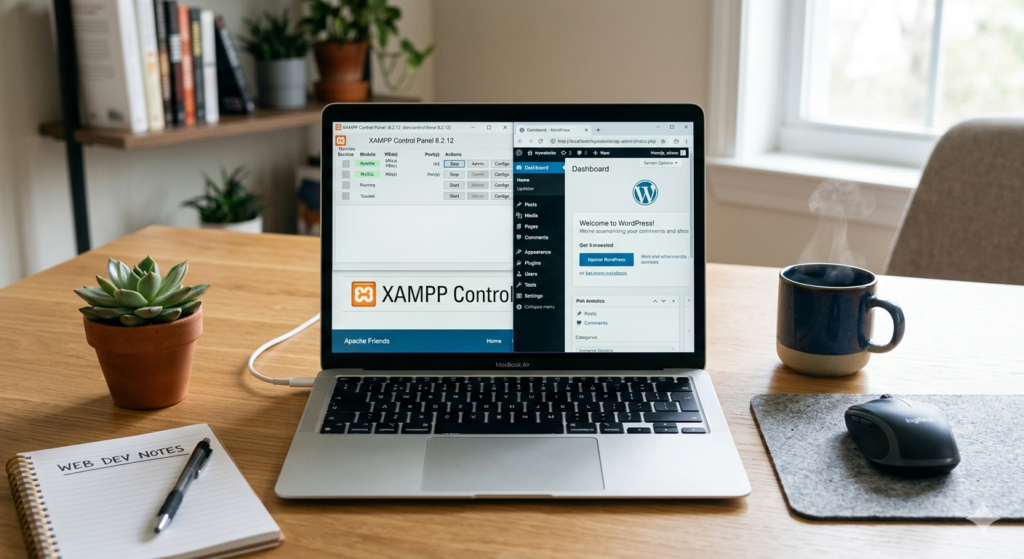
Step 2: Start Apache and MySQL
After installation:
- Open the XAMPP Control Panel
- Click Start beside:
- Apache
- MySQL
If both become green, your local server is running successfully.
Step 3: Download WordPress
Go to:
Extract the ZIP file.
Step 4: Move WordPress Files to htdocs
Find your XAMPP installation folder.
Usually:
C:\xampp\htdocsCreate a new folder:
mywebsiteCopy all WordPress files into this folder.
Step 5: Create a Database
Open your browser and visit:
http://localhost/phpmyadminNow:
- Click New
- Enter database name
- Click Create
That’s it.
Step 6: Install WordPress
Open:
http://localhost/mywebsiteNow WordPress setup will begin.
Fill in:
- Site title
- Username
- Password
Click Install WordPress.
Congratulations — your offline WordPress website is ready.
Best Tools for Offline WordPress Development
Although XAMPP is very popular, there are other great tools too.
1. LocalWP
Very beginner-friendly and simple.
Best for:
- Beginners
- Designers
- Quick WordPress setup
2. MAMP
Popular among Mac users.
3. WAMP
Another strong choice for Windows users.
Local WordPress vs Live Hosting
| Feature | Local WordPress | Live Hosting |
|---|---|---|
| Internet Needed | No | Yes |
| Visible Online | No | Yes |
| Cost | Free | Paid |
| Best For | Learning & Testing | Real Websites |
| Speed | Very Fast | Depends on Hosting |
| Security Risks | Very Low | Higher |
When Should You Buy Hosting?
Eventually, if you want your website visible online, you will need:
- A domain name
- Web hosting
You should buy hosting when:
- Your website is complete
- You are ready for visitors
- You want to start blogging
- You want to earn through affiliate marketing
- You want Google to index your website
Recommended Hosting for Beginners
If you eventually decide to launch your website online, beginner-friendly hosting providers include:
Hostinger
Good for:
- Affordable pricing
- Beginners
- Fast loading speeds
Bluehost
Officially recommended by WordPress.
SiteGround
Excellent customer support and performance.
Common Mistakes Beginners Make
1. Buying Hosting Too Early
Many beginners purchase expensive hosting before learning basic WordPress skills.
Instead:
- Learn locally first
- Practice theme installation
- Learn plugin management
Then move online confidently.
2. Installing Too Many Plugins
People often install dozens of plugins immediately.
This can:
- Slow down websites
- Cause conflicts
- Create errors
Keep your setup clean.
3. Ignoring Backups
Even local sites should be backed up occasionally.
You can use:
Can You Move a Local WordPress Site to Live Hosting Later?
Yes.
This is actually the normal workflow.
You can:
- Build locally
- Test everything
- Buy hosting later
- Migrate the website online
Plugins like:
make the migration process very easy.
FAQ’s
Can I build a WordPress site completely free?
Yes. You can install WordPress locally using XAMPP, LocalWP, or similar software without paying for hosting.
Can people see my local WordPress website?
No. A localhost WordPress site is private and only visible on your computer unless you publish it online.
Do I need a domain name for localhost WordPress?
No. You can use localhost URLs instead.
Example:
http://localhost/mywebsite
Is XAMPP safe?
Yes, when downloaded from the official website.
Can I earn money from a localhost WordPress site?
Not directly because it is offline. To earn through blogging or affiliate marketing, you eventually need live hosting.
Final Thoughts
So, can I build a WordPress site without hosting?
Absolutely.
In fact, starting with a local WordPress installation is one of the smartest things beginners can do.
You save money, avoid stress, learn faster, and gain confidence before launching a real website online.
Whether you want to:
- Learn WordPress
- Practice blogging
- Build affiliate websites
- Test plugins
- Design themes
a localhost setup is the perfect starting point.
Once your website is ready, you can move it to professional hosting and make it accessible to the world.
If you are serious about learning WordPress, downloading XAMPP today might be your best first step.