If you’re learning WordPress for the first time, one of the smartest things you can do is create a local website before spending money on hosting.
A localhost WordPress site allows you to build, design, test, and customize your website directly on your computer. Nobody can see your work online, which makes it the perfect environment for learning WordPress without risk.
Many beginners ask:
“How To Create A Localhost WordPress Site?”
The good news is that the process is much easier than most people think.
In this complete guide, you’ll learn how to install WordPress on localhost using XAMPP, create a database, access your local WordPress URL, choose templates, and prepare your website for future hosting.
If you’re wondering whether hosting is required first, read out detailed guide; CAN I BUILD A WORDPRESS SITE WITHOUT HOSTING?
- How To Create A Localhost WordPress Site Step by Step
- How To Create A Localhost WordPress Site URL
- How To Create A Localhost WordPress Site Name
- How To Create A Localhost WordPress Site Template
- How To Create A Localhost WordPress Site for Business
- Common Localhost WordPress Problems and Fixes
- Moving Your Localhost Website to Live Hosting
- Key Takeaways
- Frequently Asked Questions
- Conclusion
- CTA
What Is a Localhost WordPress Site?
A localhost WordPress site is a website that runs on your own computer instead of a public web server.
Normally, WordPress requires:
- Hosting
- Domain name
- Internet connection
With localhost development, your computer acts as the web server.
Instead of using:
https://yourwebsite.comyou use:
http://localhostor
http://localhost/yoursitenameThis setup allows you to build and test websites privately before launching them online.
Why Create a Localhost WordPress Site?
There are several benefits to using localhost.
Save Money
You don’t need:
- Hosting
- Domain registration
- Monthly subscriptions
Learn Safely
Mistakes happen when learning WordPress.
On localhost:
- Visitors cannot see errors
- Experiments are risk-free
- You can reset everything anytime
Faster Development
Since files are stored on your computer:
- Websites load faster
- Testing is easier
- Development becomes smoother
Perfect for Beginners
If you’re new to WordPress, localhost is one of the best learning environments available.
Requirements Before You Start
Before creating your localhost WordPress website, download:
Required Software
XAMPP
Provides:
- Apache
- MySQL
- PHP
- phpMyAdmin
WordPress
The free CMS you’ll install locally.
Minimum System Requirements
- Windows 10 or later
- macOS
- Linux
- At least 4GB RAM
- 2GB free storage
How To Create A Localhost WordPress Site Step by Step
Step 1: Download and Install XAMPP
Download XAMPP from the official Apache Friends website.
Install it using default settings.
After installation, open:
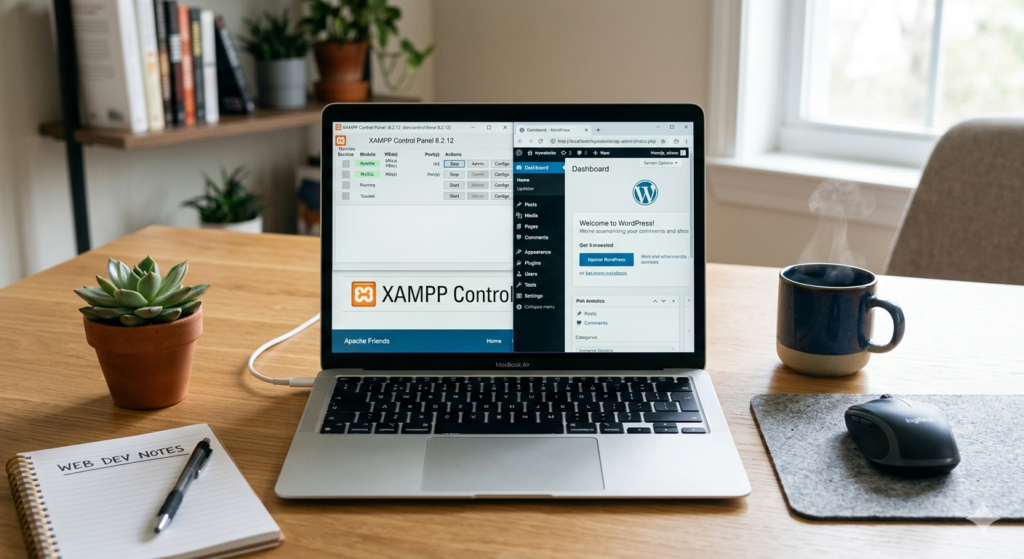
XAMPP Control Panel
Step 2: Start Apache and MySQL
Inside XAMPP:
Click:
- Start Apache
- Start MySQL
If both services turn green, your local server is active.
Step 3: Download WordPress
Download the latest WordPress version.
Extract the ZIP file.
Step 4: Create Your Website Folder
Navigate to:
C:\xampp\htdocsCreate a new folder.
Example:
mybusinesssiteCopy all WordPress files into this folder.
Step 5: Create a Database
Open your browser.
Visit:
http://localhost/phpmyadminClick:
New Database
Enter a name such as:
wordpress_localClick:
Create
Database setup is complete.
Step 6: Run the WordPress Installation
Open:
http://localhost/mybusinesssiteWordPress setup will begin.
Choose:
- Site Title
- Username
- Password
- Email Address
Click:
Install WordPress
Congratulations!
You have successfully created a localhost WordPress website.
How To Create A Localhost WordPress Site URL
Many beginners get confused about localhost URLs.
A localhost URL is simply the address used to access your local website.
Examples:
Homepage URL
http://localhost/mybusinesssiteWordPress Dashboard URL
http://localhost/mybusinesssite/wp-adminLogin URL
http://localhost/mybusinesssite/wp-login.phpKeeping folder names short and memorable makes URLs easier to manage.
How To Create A Localhost WordPress Site Name
Choosing the right localhost site name helps keep projects organized.
Good examples:
- affiliateblog
- travelwebsite
- portfolio
- businessdemo
- ecommerceproject
Avoid:
- spaces
- special symbols
- long folder names
A clean site name also creates cleaner localhost URLs.
How To Create A Localhost WordPress Site Template
After installing WordPress, you’ll probably want a professional design.
Free WordPress Templates
Popular beginner-friendly themes include:
- Astra
- GeneratePress
- Kadence
- Blocksy
- Neve
Business Templates
For business websites:
- Corporate layouts
- Service pages
- Contact forms
- Portfolio sections
Blog Templates
For bloggers:
- Magazine layouts
- Personal blog designs
- Affiliate review templates
The beauty of localhost is that you can test multiple templates before launching online.
How To Create A Localhost WordPress Site for Business
A localhost environment is ideal for building business websites before publishing.
Business owners can:
- Design pages
- Create service sections
- Build contact forms
- Test booking systems
- Configure SEO plugins
Before launch, you can review every detail without affecting real visitors.
This approach is commonly used by web developers and agencies.
Best Plugins to Install on Localhost
Rank Math SEO
Helps optimize content before launch.
Elementor
Build pages visually without coding.
WPForms
Create professional forms.
UpdraftPlus
Create backups.
All-in-One WP Migration
Useful when moving from localhost to live hosting.
Common Localhost WordPress Problems and Fixes
Apache Won’t Start
Possible causes:
- Skype using port 80
- IIS conflicts
- Firewall restrictions
Solution:
Change Apache ports in XAMPP settings.
Database Connection Error
Check:
- Database name
- Username
- Password
Most localhost installations use:
Username:
rootPassword:
blankWhite Screen of Death
Usually caused by:
- Theme conflicts
- Plugin conflicts
- PHP errors
Disable plugins one by one to identify the issue.
Moving Your Localhost Website to Live Hosting
After completing your website, you can move it online.
Typical process:
- Buy hosting
- Register a domain
- Export localhost website
- Import to hosting account
- Update URLs
- Test functionality
Migration plugins make this process easier.
Popular choices:
- Duplicator
- All-in-One WP Migration
- UpdraftPlus
For a complete understanding of when hosting becomes necessary, see our guide:
Can I Build A WordPress Site Without Hosting?
Key Takeaways
- A localhost WordPress site runs on your computer.
- XAMPP is one of the easiest tools for localhost development.
- You can learn WordPress without buying hosting.
- Localhost websites are private and secure.
- Testing themes and plugins is safer offline.
- Migration to live hosting is simple using migration plugins.
Frequently Asked Questions
How To Create A Localhost WordPress Site for beginners?
Install XAMPP, start Apache and MySQL, download WordPress, create a database, and complete the installation using localhost.
Can I create a localhost WordPress site without internet?
Yes. After downloading the required software, most localhost development can be done offline.
What is the localhost WordPress site URL?
Usually:
http://localhost/sitenameCan I use localhost for a business website?
Yes. Many agencies develop business websites locally before launching them online.
Is localhost WordPress free?
Yes. WordPress and XAMPP are both free to use.
Can Google index my localhost website?
No. Search engines cannot access localhost websites.
Conclusion
Learning How To Create A Localhost WordPress Site is one of the most valuable skills for WordPress beginners.
A localhost setup allows you to practice, build websites, test themes, install plugins, and gain confidence without spending money on hosting.
Whether you’re creating a personal blog, affiliate website, portfolio, or business site, localhost development provides a safe environment to learn and experiment.
Once your website is complete, you can migrate it to live hosting and make it available to the world.
CTA
Ready to start building your first WordPress website?
Before purchasing hosting, learn how localhost development works and understand the advantages of offline website creation.
Read our complete guide:
Can I Build A WordPress Site Without Hosting?
Discover how beginners can learn WordPress, save money, and build websites confidently before going live.